Zoom Integration Guide for zinnect scheduler
Blog » Zoom Integration Guide for zinnect scheduler
2 min read
Overview
The Zoom integration allows users to automatically generate Zoom meeting links for scheduled events. Once connected, Zoom meetings are created in real time when a booking is confirmed, eliminating the need for manual meeting setup.
Adding the Zoom Integration
Follow these steps to connect your Zoom account:
Steps
- Log in to zinnect scheduler account.
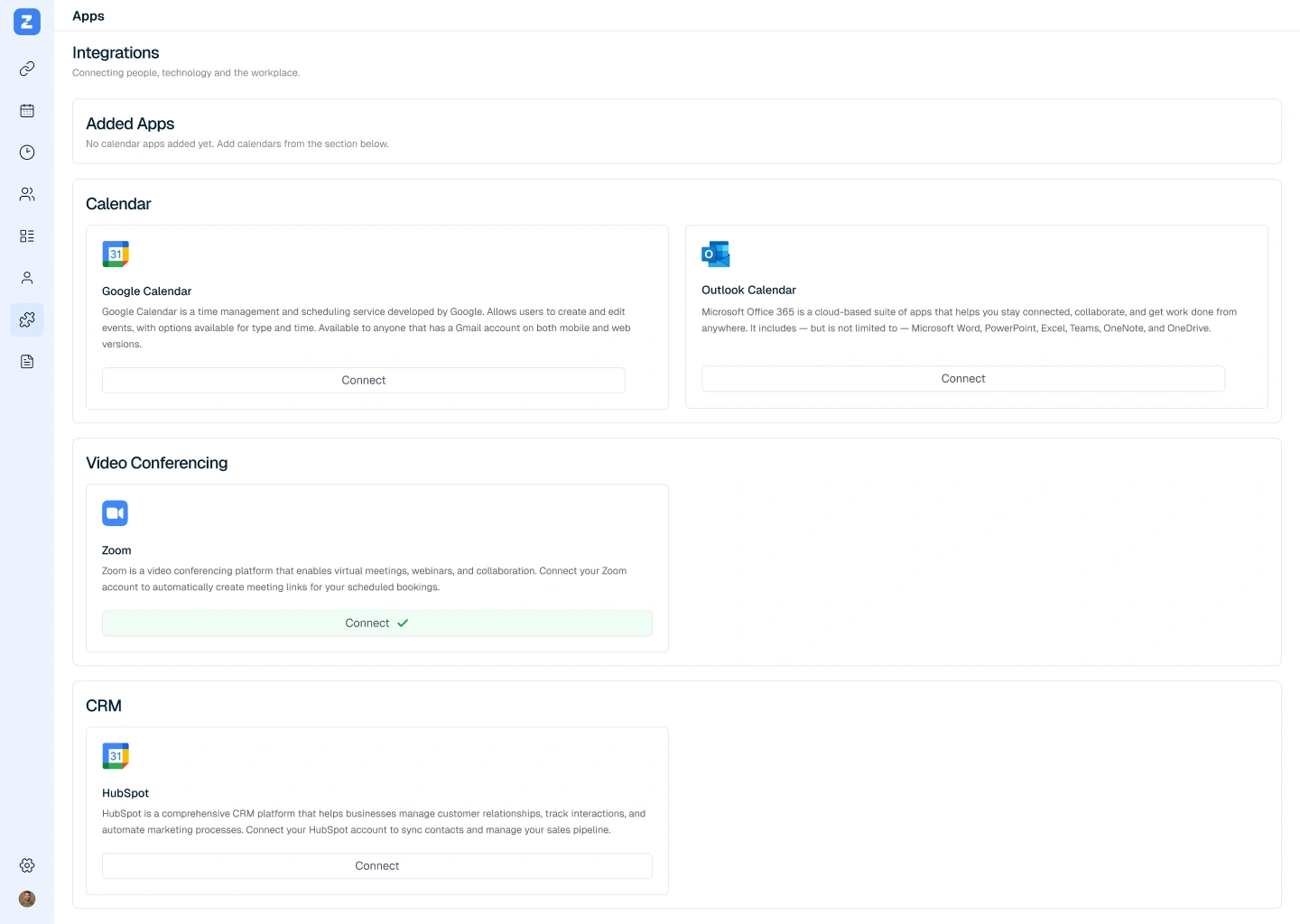
- Navigate to Apps→ Integrations → Zoom.
- Click Connect Zoom Account.
- You will be redirected to Zoom’s authorization screen.
- Review the requested permissions and click Authorize.
- Once authorized, you will be redirected back to Zinnect scheduling, and the Zoom integration will be marked as Connected.


Required Permissions
The app requests limited Zoom permissions to:
- Create Zoom meetings
- Retrieve meeting details (meeting URL, meeting ID)
- Assign meetings to scheduled bookings
We do not access recordings, chat data, or any personal Zoom content outside meeting creation.
Using Zoom with Scheduled Events
Once the Zoom account is integrated, no additional configuration or selection is required.
How It Works
- Zinnect Scheduling does not provide a separate option to choose Zoom during event creation.
- When a meeting is scheduled and the organizer’s Google Calendar account is connected, the system automatically generates a Zoom meeting link.
- The generated Zoom meeting link replaces the default Google Meet link in the calendar event.
Booking & Invitations
The Zoom meeting link is:
- Added to the calendar event
- Included in the meeting invitation
- Sent to both the organizer and participants
Automatic Behavior
- This process happens automatically for all eligible scheduled meetings.
- Users are not required to manually create Zoom meetings or modify calendar settings.
- If Zoom is disconnected, meetings will revert to using the default video conferencing behavior
Removing the Zoom Integration
You can disconnect Zoom at any time.
Steps to Disconnect
- Go to Settings → Integrations → Zoom.
- Click Remove.
- Confirm the action.

What Happens After Removal
- No new Zoom meetings will be created.
- Existing meetings remain in Zoom but will no longer be managed by Zinnect Scheduling.
- You can reconnect Zoom at any time using the same steps.
Data & Privacy
- Zoom access tokens are stored securely and encrypted.
- Tokens are used only for meeting creation and management.
- We comply with Zoom’s API and data protection policies.
- No Zoom data is shared with third parties.
Support
If you face any issues with the Zoom integration, contact us:
- Email: support@zinnect.com